
Games
A 2D game on Stipple draws its world into a canvas once per
display frame, reads the keyboard, mouse and gamepads, and builds its menus,
HUD and settings from Stipple's widgets. stipple::game holds the pieces
that are a game's own:
- The loop (below): an update per display frame that repaints the canvas without rebuilding the view, pausing on its own when the game can't be seen.
- A fixed time step (below), so the simulation doesn't depend on the refresh rate.
- Input (below): what is held, and what was pressed and released since the last update.
- Actions (below): "jump", "move left", bound to inputs the player can change and save.
- Drawing (below): sprite sheets and animations, tilemaps, a camera, and pixel art scaled by whole numbers, on fast blit paths, or all on the GPU when a GPU renderer draws the window.
- Game UI (below): a game theme, menus driven by the keyboard and gamepads, settings rows (volume, rebinding, display), a HUD and dialogue boxes.
- Saving (below): settings and save slots, written atomically with a backup.
Pointer lock is in pointer-events.md, gamepads in gamepads.md and sound in audio.md. See the roadmap for what Phase 9 still lacks.
The gameloop example puts the pieces together in about a hundred lines: a
square moved with the arrows or WASD, stepped at 120 Hz, with an fps label.
A whole game. examples/gamedemo is "Lampwick", a small original game
built on all of it: Wick keeps a lantern in a night garden, catching the
embers that drift down (they feed the light, which burns down on its own)
while moths drawn to the light fly at it; a flare spends light to burst
them. It has a title menu, a settings screen (volume per group, rebinding
for the keyboard and the pad, fullscreen, pixel scale) saved as it changes,
a HUD (hearts, the light, a score that pops, floating "+30 ×3"), a pause
menu (Escape, Start, B or the touch "II"), a game-over screen keeping the
best score, synthesized effects and a generated music loop, pixel art at
320×180 with the camera shaking on a hit, and the keyboard, the mouse, a
gamepad and the touch controls through the same Actions. No image or
sound files: the sprite sheet is painted at startup. It runs on the web
too (game.html on the Pages site,
saving to localStorage). gamedemo --selftest plays a seeded game with
scripted keys at a fixed 60 Hz, off screen, checks the exact score, and
that the settings, controls and best score were saved and read back (CI
runs it); gamedemo --shots DIR renders its screens.
The loop
App::on_frame(update) runs update(&mut state, &mut Frame) once per
display frame, on the UI thread, while the game runs. App::game_loop takes
a GameLoop for more control:
use stipple::prelude::*;
use stipple::game::{Frame, GameLoop};
use std::cell::RefCell;
use std::rc::Rc;

const WORLD: CanvasId = CanvasId(1);

#[derive(Default)]
struct World { x: f64 }

struct Game { world: Rc<RefCell<World>>, score: u32, paused: bool }

fn update(g: &mut Game, frame: &mut Frame) {
    g.world.borrow_mut().x += 60.0 * frame.dt_secs();
    frame.repaint(WORLD); // the canvas changed, the view didn't
    if frame.input().key_pressed(PhysicalKey::SPACE) {
        g.score += 1;
        frame.rebuild(); // the HUD shows the score
    }
}

fn view(g: &Game, cx: &mut Cx<Game>) -> Element {
    let world = g.world.clone();
    column(vec![
        label(cx, format!("Score: {}", g.score)),
        Element::canvas(WORLD, move |c: &mut Canvas| {
            let x = world.borrow().x % c.size().width;
            c.fill_rect(Rect::from_xywh(x, 10.0, 20.0, 20.0), Color::rgb(200, 40, 40));
        })
        .grow(1.0),
    ])
}

let game = Game { world: Default::default(), score: 0, paused: false };
let app = App::new(game, view)
    .game_loop(GameLoop::new(update).paused_when(|g: &Game| g.paused));
Not rebuilding the view. An update doesn't rebuild the view on its own:
it says what changed. frame.repaint(id) (or repaint_rect(id, rect))
paints a canvas again, and only that area is rasterized and presented, as
with invalidate_canvas; frame.rebuild() rebuilds
the view after the update, for when something the view shows changed (a
score, a pause menu). A frame that only repaints the canvas doesn't build or
lay out anything; the game's tests check it, and STIPPLE_APP_DEBUG=1 gameloop --selftest shows it (present: repainted each frame, present: built only when the fps label changes). Since the canvas's paint callback
doesn't get the state, keep what it draws in an Rc<RefCell<…>> (or
Rc<Cell<…>>) shared by the state and the callback.
**The Frame.**
time(): the frame time, on the same timeline asCx::frame_timeand animations.dt()/dt_secs(): the time since the last frame, at mostGameLoop::max_dt(100 ms unless set), so after a hitch the game slows down instead of jumping.raw_dt()is the time before that cap. The first frame after starting or resuming gets one refresh interval.index(): how many frames ran before.input(): the input state.stats(): aLoopStatswithfps, the meanframe_time,update_time(the update itself) andrender_time(presenting a frame: building the view when it is rebuilt, painting, rasterizing, handing it over), averaged over half a second, andframesso far.
Pausing. The loop runs while the game can be seen and isn't paused. It stops, and asks for no frames at all (no CPU), while:
paused_when(|s| …)returnstrue: a pause flag in the state. It is asked after every event and update, so a key handler, a button in a pause menu or the update itself pauses and resumes the game. The update doesn't run while paused, so resume from the view (a button, anon_raw_keyhandler) or anAppHandle::update.- every window of the app is minimized, or the app is in the background (mobile, see window-lifecycle.md).
- no window has keyboard focus, with
pause_when_unfocused(true).
On resuming, the first frame's dt is one refresh interval, not the time
spent paused, and keys and buttons pressed while paused (the one that
resumed) aren't reported as presses.
How it runs. The loop asks the frame clock for a frame
after each update, the way an animating view does, and runs the update when
the frame arrives, before the window presents. Wakes that aren't frames
(an AppHandle::update, a timer) don't run it. With several windows it runs
once per frame, and each window repaints the canvases asked for.
To run an update in a test, without an app, make a Frame yourself:
Frame::new(time, dt, &input), then look at frame.repaints() and
frame.rebuilds().
A fixed time step
Physics stepped by the frame's dt changes with the refresh rate. A
FixedStep spends each frame's dt in whole steps of a fixed size and
keeps the rest for the next frame:
use stipple::game::FixedStep;
let mut step = FixedStep::hz(120); // or FixedStep::new(Duration)
for _ in 0..step.advance(dt) {
    body.prev = body.pos;
    body.pos += body.vel * step.dt_secs();
}
// Draw between the last two states.
let drawn = body.prev + (body.pos - body.prev) * step.alpha();
alpha() is how far the leftover time is into the next step (0 to 1).
advance runs at most max_steps steps per frame (8 unless set) and drops
the time beyond, rather than falling further behind each frame;
dropped() says how much. reset() forgets the leftover time (a new
level).
Input
frame.input() is an InputState, kept up to date from the window's events
whatever has focus:
key_held(k), key_pressed(k), key_released(k) | Keys by position (PhysicalKey: KEY_W, ARROW_LEFT, SPACE, … or PhysicalKey::from_name("KeyW")), the same on every layout. |
logical_held(c), logical_pressed(c), logical_released(c) | Keys by what they gave under the layout when pressed (KeyCode::Char('w'), letters compared without case), for "press Q to quit" where the label matters more than the position. |
keys_held(), keys_pressed(), modifiers() | All of them. |
button_held(b), button_pressed(b), button_released(b) | Mouse buttons. |
pointer() | Where the pointer is in the window, None outside it. |
motion(), wheel() | How far it moved (or, locked, how far the mouse moved), and the wheel turned (in pixels; lines count 40 px), since the last update. |
gamepad_held(pad, b), gamepad_pressed(pad, b), gamepad_released(pad, b) | Gamepad buttons, on Some(id) or on any pad with None (the touch controls included). |
gamepad_axis(pad, axis) | A stick (−1…1, +Y down) or trigger (0…1), no dead zone; with None, the pad pushing it furthest. |
gamepads(), gamepad_buttons_pressed() | The connected pads, and the buttons pressed on them. |
touches(), touches_started(), touches_ended() | The fingers down (id, start, position), and those that landed and lifted since the last update. |
last_device() | Keyboard, Mouse, Gamepad or Touch: what to show prompts for. |
Pressed and released are edges since the last update, and they are latched: a key (or pad button) pressed and released between two frames reads as both on the next frame, so a quick tap is never lost. A key repeat is not a press. When the window loses focus, every held key, button and finger is let go and reported released, and the pads' buttons and axes too, so nothing released in another window stays held. A pad that disconnects reports its held buttons released. The game loop starts gamepad support, so pads that are already connected show up on their own.
The pointer events a touch screen's first finger also produces aren't taken
as the mouse: a tap is in touches_started(), not button_pressed(Left).
The game sees keys whether or not a widget uses them too; while a text field in a menu has focus, pause the game (or ignore its input).
Mouse look. Lock the pointer (AppHandle::set_pointer_lock(true), from
a click; see pointer lock) and read
motion(): while locked it adds up the mouse's relative motion
(Event::PointerDelta) since the last update, and the pointer's moves (it is
held in place) don't count; unlocked it is how far the pointer moved. Either
way it's in logical pixels, so one sensitivity works for both:
if input.pointer_locked() {
    let m = input.motion(); // frame.input()
    yaw += m.dx * 0.15;
    pitch = (pitch - m.dy * 0.15).clamp(-89.0, 89.0);
}
An InputState can also be fed by hand (key, button, pointer_moved,
add_motion, wheel_by, gamepad, touch, event, then end_update
once per update), for a test or for input the game routes itself.
Touch controls. For phones, TouchControls puts a virtual stick and
buttons over the game, and they act as one more pad: a TouchStick moves a
pad stick, a TouchButton holds a pad button, so the gamepad bindings below
play them too.
use stipple::core::CanvasId;
use stipple::game::{Corner, GameLoop, ShowTouch, TouchButton, TouchControls, TouchOverlay, TouchStick};
use stipple::gamepad::GamepadButton;
use stipple::prelude::*;

let controls = TouchControls::new()
    .stick(TouchStick::left()) // the left pad stick, floating over the left half
    .button(TouchButton::new(GamepadButton::South, "A")) // bottom right
    .button(TouchButton::new(GamepadButton::East, "B").at(Corner::BottomRight, Vec2::new(160.0, 60.0)))
    .show(ShowTouch::Auto);
// The loop: GameLoop::new(update).touch_controls(controls)
// The state keeps a TouchOverlay::new(CanvasId(2)).font(Font::system_default());
// the update calls overlay.sync(frame) (it repaints when they change), and
// the view puts overlay.element(&theme) last in an Element::layers covering
// the window.- A finger belongs to the control it lands on until it lifts: a button (or
just outside it), else a free stick whose area it's in, so the left thumb
steers while the right one holds a button. A floating stick
(
TouchStick::left()'s default) centers where the finger lands anywhere on its half of the window;floating(false)needs the finger on it. Other fingers stay the game's (touches()). - The stick reads its finger's distance from the center over
radius, clamped to 1, with a radialdead_zone; a trigger button also pulls its axis all the way. - Placement: each control's center is
insetin from aCornerof the window;radiussizes it. ShowTouch::Auto(the default) shows them while touch is the last device used: they hide on a key, a click or a pad and come back on the next touch (before any input, they show on iOS and Android).Always, orNever(off: they take no touches).- They're drawn in the theme's colors: the stick's ring in
surfaceandborder, the knob and the buttons inprimary(primary_activewhile held), the labels inon_primary(with the overlay's font). input.touch_controls()gives their state (visible(),stick_value(i),button_held(i)) to a game that draws them itself (paint(canvas, theme, font)).
Actions
Actions<A> binds the game's actions (an enum of yours) to inputs, and
answers per update:
use stipple::game::{Actions, Binding};
use stipple::prelude::*;

#[derive(Clone, Copy, PartialEq, Eq, Hash, Debug)]
enum Act { Left, Right, Up, Down, Jump, Steer }

let mut actions = Actions::new()
    .with(Act::Left, Binding::Key(PhysicalKey::ARROW_LEFT))
    .with(Act::Left, Binding::Key(PhysicalKey::KEY_A))
    .with(Act::Right, Binding::Key(PhysicalKey::ARROW_RIGHT))
    .with(Act::Jump, Binding::Key(PhysicalKey::SPACE))
    .with(Act::Jump, Binding::MouseButton(PointerButton::Left))
    .with(Act::Steer, Binding::KeyAxis { neg: PhysicalKey::KEY_Q, pos: PhysicalKey::KEY_E });

// In the update:
actions.update(&input); // frame.input()
if actions.pressed(Act::Jump) { /* … */ }
let steer = actions.value(Act::Steer); // -1 to 1
let (dx, dy) = actions.axis2((Act::Left, Act::Right), (Act::Up, Act::Down));held(a)while any of its bindings is held;pressed(a)on the update it starts,released(a)on the one it stops (both on one update for a tap).value(a)adds up its bindings' values (1 for a held key or button, -1/0/1 for aKeyAxis, analog for a gamepad axis), clamped to -1…1.axis2makes a direction from four actions,ydown, no longer than 1, so diagonals aren't faster.Bindingis#[non_exhaustive], so match it with a_arm.
Gamepads. Gamepad bindings read any pad (the touch controls included):
| binding | text | value |
|---|---|---|
GamepadButton(b) | Pad:South | 1 while held |
GamepadAxis { axis, direction: Both, dead_zone } | PadAxis:LeftX | the axis (−1…1, a trigger 0…1) past the dead zone, rescaled to reach 1 |
GamepadAxis { axis, direction: Positive, .. } | PadAxis:LeftX+ | the positive half as 0…1: right, down, a trigger |
GamepadAxis { axis, direction: Negative, .. } | PadAxis:LeftX- | the negative half as 0…1: left, up |
An axis binding is held while past its dead zone, and pressed or released
when it crosses it, so a half axis is a button: PadAxis:LeftX+@0.5 is
"pushed right more than half way" (menu navigation, a D-pad stand-in).
Binding::axis(axis, direction) takes the default dead zone
(Binding::DEFAULT_DEAD_ZONE, 0.25), which the text form leaves out;
another is written @0.35.
For a stick, bind its two axes whole with no dead zone and read them
together with stick, which applies a radial dead zone (a per-axis one
snaps diagonals to the axes) and keeps the length within 1:
use stipple::game::{Actions, AxisDirection, Binding};
use stipple::gamepad::{GamepadAxis, GamepadButton};
use stipple::prelude::*;

#[derive(Clone, Copy, PartialEq, Eq, Hash, Debug)]
enum Act { MoveX, MoveY, Jump, Right }

let raw = |axis| Binding::GamepadAxis { axis, direction: AxisDirection::Both, dead_zone: 0.0 };
let mut actions = Actions::new()
    .with(Act::MoveX, raw(GamepadAxis::LeftX))
    .with(Act::MoveX, Binding::KeyAxis { neg: PhysicalKey::KEY_A, pos: PhysicalKey::KEY_D })
    .with(Act::MoveY, raw(GamepadAxis::LeftY))
    .with(Act::Jump, Binding::GamepadButton(GamepadButton::South))
    .with(Act::Right, Binding::GamepadAxis {
        axis: GamepadAxis::LeftX,
        direction: AxisDirection::Positive,
        dead_zone: 0.5,
    });
actions.update(&input);
let (dx, dy) = actions.stick(Act::MoveX, Act::MoveY, 0.2); // radial dead zone 0.2
Rebinding. iter() lists every action with its bindings, in the order
they were bound (the rows of a controls screen); bindings(a),
set_bindings(a, list), rebind(a, slot, binding) (a "primary" and
"secondary" column), unbind(binding) (take a key away from whatever had
it) and bound_to(binding) (conflicts). For a "press a key…" row:
Binding::capture(frame.input()) gives the first key, mouse button or
gamepad button pressed since the last update, else a stick or trigger
pushed past half way (as the half axis it went along, PadAxis:LeftY-,
with the default dead zone); the touch controls aren't captured.
Binding::from_key_event(ev) does the same for keys from an on_raw_key
handler, for a settings screen shown while the game is paused.
Saving them. to_text(name_of) writes one line per action, and
load_text(text, action_of) reads it back over the defaults (actions not
in the text keep theirs; unknown names are skipped; a malformed line is an
error with its line number, and nothing changes):
Left = Key:ArrowLeft, Key:KeyA, PadAxis:LeftX-@0.5
Jump = Key:Space, Mouse:Left, Pad:South
Steer = KeyAxis:KeyQ/KeyE, PadAxis:RightX
Keys are written by their W3C code name (# and the hex HID usage for a
key without one), mouse buttons as Left, Right, Middle, Back,
Forward or a number, pad buttons and axes by their GamepadButton and
GamepadAxis names. A single Binding prints and parses (Display,
FromStr) the same way.
Drawing
A game draws its world into a canvas (Element::canvas, see
canvas.md) every frame. On top of the canvas's shapes, text and
bitmaps, a game gets:
- Image regions:
Scene::draw_image_region(src, dst, &image, &opts)draws part of a bitmap: a frame of a sprite sheet, a tile of a tileset.ImageOptionsflips it (flip_x,flip_y), rotates and scales it about a pivot (rotate,scale,pivot, as fractions ofdst), multiplies it by atint, fades it (opacity), and picks the sampling:Filter::Linear(smooth, the default) orFilter::Nearest(.nearest(): hard pixels).draw_image_with(dst, &image, &opts)draws a whole bitmap the same way. The pixels aren't copied: keep theArc<Pixmap>and draw from it every frame. - **
SpriteSheet**: an image and its frames, cut as a grid (SpriteSheet::grid(image, 16, 16), orfrom_grid(image, SpriteGrid::new(16, 16).margin(1).spacing(2))for margins and gaps) or added one by one, by name if you like (add("coin", rect),index("coin")).sheet.draw(scene, frame, dst, &opts)anddraw_at(scene, frame, top_left, &opts)draw a frame. - **
SpriteAnimation**: frames with durations (SpriteAnimation::new(4..8, 0.1), orwith_durations), playedLoop,OnceorPingPong, sampled at a time:walk.frame_at(t)gives the sheet frame to draw. - **
Tilemap**: a grid of tile numbers (frames of a tileset sheet) with a tile size and an origin in the world (Tilemap::new(cols, rows, tile).origin(p)).map.draw(scene, &tileset, view, &opts)draws only the cells that crossview, so a level of any size costs what's on screen;cell_at,cell_rectandvisible_cellsanswer the usual questions. - **
Camera2D**: the world point at the screen's center (position),zoom, an optionalrotation, and shake (add_trauma(amount)adds trauma that fades asupdate(dt)runs).follow(target, rate, dt)trails a point smoothly,clamp_to(bounds)keeps the view inside the level.transform()is the world-to-screenAffine;world_to_screen,screen_to_worldandvisible_rectmap between the two. Draw the world insidecam.push(scene)/cam.pop(scene)(aScenelayer) orcam.draw(scene, |s| …). Withsnap(on by default) the translation is rounded to whole screen units, so pixel art doesn't shimmer while the camera glides. Set it up withCamera2D::new(viewport).position(p).zoom(2.0)(rotation,snap,shake(strength, decay)); the fields stay public to move it each frame. - **
PixelViewport**: a fixed virtual resolution for pixel art,PixelViewport::new(320, 180).vp.paint(canvas, |s| …)gives the game aSceneof 320×180 to draw into, draws it at that size, and scales it nearest-neighbor into the canvas (Scene::draw_offscreen: rasterized and blitted by the software renderer, or drawn into an offscreen target and scaled on the GPU, see below) at the largest whole-number scale that fits in device pixels, centered on whole pixels, with bars (bar_color) around it.vp.pointer_to_virtual(e.position)turns a pointer position on the canvas into virtual pixels (Noneon the bars);layout(size, scale)is the arithmetic on its own.max_factorcaps the scale (a "pixel scale" setting: 2× in a big window, with wider bars).
use std::sync::Arc;
use stipple::game::{Camera2D, PixelViewport, SpriteAnimation, SpriteSheet, Tilemap};
use stipple::prelude::*;
use stipple::render::ImageOptions;

struct World {
    sheet: SpriteSheet,
    map: Tilemap,
    walk: SpriteAnimation,
    cam: Camera2D,
    vp: PixelViewport,
    hero: Point,
    time: f64,
}

fn paint(w: &World, c: &mut Canvas) {
    let px = ImageOptions::new().nearest();
    w.vp.paint(c, |s| {
        w.cam.draw(s, |s| {
            w.map.draw(s, &w.sheet, w.cam.visible_rect(), &px);
            w.sheet.draw_at(s, w.walk.frame_at(w.time), w.hero, &px);
        });
    });
}
The spritedemo example is a complete scene: a sprite sheet painted pixel by
pixel at startup, a hero walking over a tilemap at 320×180 with the camera
following, coins spinning, clouds in parallax, a click to send the hero
somewhere (through pointer_to_virtual and screen_to_world), and the frame
rate printed every second. spritedemo --png FILE renders a frame
off-screen; spritedemo --selftest runs 240 frames in a window and prints
the frame rate and what drew them.
How it draws, and what it costs
The software renderer draws image regions itself instead of handing them to
oxideav-raster, whose general path builds a canvas-sized coverage mask for
every primitive and samples images pixel by pixel through the inverse
transform. The scene is walked in paint order:
- an upright region drawn unscaled at whole pixels, or scaled nearest-neighbor (by whole numbers or not), is blitted through a table of source columns and rows: no transform per pixel, opaque runs copied whole, translucent pixels blended exactly as the rasterizer blends them;
- other upright regions (linear, scaled or at fractional positions) are sampled bilinear through per-column and per-row taps, clamped to the region so neighbors in an atlas don't bleed in, with antialiased edges;
- turned regions are mapped back pixel by pixel (nearest, or bilinear with antialiased edges);
- a solid rect on whole device pixels (a background, a health bar) is filled directly;
- everything else between them (paths, text) is rasterized by
oxideav-rasterfor just the box it covers, and composited in order.
Regions inside a translucent layer, or a clip that isn't an upright rect, are drawn by the rasterizer as plain images (nearest regions upscaled first so they stay blocky). A canvas's paint callback now runs once per frame rendered, not once per band.
spritedemo --bench times the software renderer drawing a 1920×1080 frame:
a full-screen background image and 2000 32×32 sprites (discs with soft alpha
edges, so every sprite blends), single-threaded, release build, Apple M5 Max:
| What | ms per frame |
|---|---|
Before: the same bitmaps through draw_image (the rasterizer's path) | 84 |
Unscaled regions (draw_image_region) | 4.4 |
| 16×16 regions drawn 2× nearest, half of them flipped | 4.1 |
| Unscaled, tinted and at 80% opacity | 11 |
| Bilinear at fractional positions | 26 |
| Turned (bilinear) | 44 |
So a full 1080p screen of sprites fits a 60 Hz frame with room to spare when
they're drawn unscaled or scaled by whole numbers (what pixel art and most 2D
games draw); smooth subpixel motion and rotation cost more, and fit when
fewer sprites need them. A PixelViewport game rasterizes only its virtual
resolution (320×180 is 1/36 of 1080p) plus one nearest blit to the window.
The software blits run on one thread.
On the GPU
With a GPU renderer (App::renderer(Renderer::Gpu) or STIPPLE_RENDERER,
see gpu.md) a game's frames are drawn on the
GPU and presented straight to the window like the rest of the app (read
back only where the platform can't present yet: Wayland). Nothing about the
game changes:
- A game canvas repainted whole every frame is drawn straight on the GPU after its first three frames (rather than kept as a texture updated in place), so its paint callback's scene is lowered and drawn by the GPU executor directly.
- Each region is a textured quad from the whole bitmap's texture, cached by
its
Arc: a sprite sheet or tileset is uploaded once and stays a texture. The region's texture coordinates (swapped for a flip), nearest sampling forFilter::Nearest, the tint and opacity in the shader, the samples kept half a texel inside the region. Sprites from one sheet batch into one draw call (2000 sprites over a background: two). - A
PixelViewportframe (Scene::draw_offscreen) is drawn into an offscreen target of the virtual resolution and composited into the canvas nearest-neighbor: a resampled layer (Op::PushResampledinsrc/gpu/ops.rs, executed by Metal, Vulkan, GLES, Direct3D 11, and on the web by WebGPU and WebGL2: the op buffer's resampled-layer op, drawn byweb/gpu.js). Before, the 320×180 frame was rasterized on the CPU each frame and uploaded as a new texture. Drawn rotated, or with a virtual resolution bigger than the window, it is still the software renderer's bitmap, uploaded each frame.
The frames are paced as every frame is (see
gpu.md): the display's clock asks for them, and the
swapchain presents them; the loop's render_time is the time to build and
submit a frame, not the GPU's.
spritedemo --selftest checks it in a window: drawn on a GPU, it fails if
any texture or canvas pixels were uploaded after the first 30 frames. With
STIPPLE_RENDERER naming a GPU, spritedemo --bench times the same scenes
on that GPU, drawn offscreen and waited for but not read back (what a frame
presented to a window costs), plus a 640×360 PixelViewport of the sprites
scaled 3×. On a Linux desktop (a Ryzen Threadripper 9970X; an NVIDIA RTX
5080, and Mesa's llvmpipe, a software GPU running on the same CPU), ms per
frame:
| What | Software renderer | Vulkan, RTX 5080 | GLES, RTX 5080 | GLES, llvmpipe |
|---|---|---|---|---|
draw_image (2001 textures, 2001 draws) | 85 | 0.78 | 4.1 | 12.4 |
| Unscaled regions | 2.5 | 0.40 | 1.4 | 4.7 |
| 2× nearest, flipped | 2.4 | 0.43 | 1.4 | 4.3 |
| Tinted and faded | 7.0 | 0.42 | 1.4 | 4.4 |
| Bilinear at fractional positions | 19 | 0.43 | 1.6 | 5.0 |
| Turned (bilinear) | 45 | 0.44 | 1.5 | 5.1 |
640×360 PixelViewport, 3× | 2.0 | 0.43 (1.15 before) | 1.5 (2.3 before) | 4.3 (3.3 before) |
"Before" is the pixel-art frame rasterized on the CPU and uploaded each
frame, as it was. On a hardware GPU everything is faster and no longer
depends on how sprites are drawn; on llvmpipe the GPU path is slower than
the CPU blits (it rasterizes every quad in software), and so is drawing the
pixel-art frame there: the software renderer stays the right choice where
there is no hardware GPU, as Renderer::Auto keeps it today. CI's runners
say the same: on lavapipe and llvmpipe 17–21 ms for the sprite cases (12.5
for the pixel-art frame) against 4–5 ms on their CPU, on WARP 26–31 ms
(19) against 6.6–6.9 ms; the self-test passes on all three, uploading
nothing after its warm-up. On the web, the site check
(tools/site/check.py) runs spritedemo with ?renderer=gpu and fails it
if a frame after the warm-up uploads a texture.
Game UI
stipple::game::ui dresses Stipple's widgets for a game: the game's own
font and colors, menus moved through with the arrows and a gamepad, the
usual screens, a settings screen's rows and a HUD over the game. None of it
is a framework: screens are pages of a page_stack (or a match in the
view), the pause menu is a modal overlay, and everything else is an
Element. examples/gameui ("Starlit Courier") puts it all together;
gameui --shots DIR renders each screen off screen.
A game's theme
use stipple::game::ui::GameStyle;

let style = GameStyle::neon() // or GameStyle::ember()
    .font_bytes(include_bytes!("../assets/Display.ttf").to_vec())?
    .accent(Color::rgb(0x2e, 0xc4, 0xb6));
App::new(state, view).game_style(style); // the theme and the font
A GameStyle is what a game decides: font (from the game's files with
font_bytes, or font for a Font with more faces),
background, surface, accent, text, text_muted, danger,
success, warning, radius, font_size and focus, each set with the
setter of the same name (.background(c), .surface(c), .text(c), …). style.theme()
(or Theme::game(&style)) makes the Theme every widget reads, with a
type scale for a screen read from the sofa (titles 1.3×, headings 2× the
body). Widgets draw text in the app's font, so the font goes to
App::font; App::game_style sets both. The presets: neon (night blues,
a hot pink accent, a glowing ring) and ember (charcoal and parchment,
amber, square corners).
The focus ring. Theme::focus is a FocusLook, for any theme: the
ring's width, its offset from a button, and a glow fading out around
it. FocusLook::STANDARD is the usual 2 px ring; FocusLook::BOLD (3 px,
3 px off, an 8 px glow) is a game's. The ring follows rounded corners.
Menus for the keyboard and the gamepad
use stipple::game::ui::{menu_button, menu_list};

let menu = menu_list(cx).children(vec![
    menu_button(cx, "Start", |g| g.start()),
    menu_button(cx, "Settings", |g| g.screen = Screen::Settings),
    menu_button(cx, "Quit", move |_| handle.exit()),
]);

App::new(game, view)
    .gamepad_navigation()
    .on_back(|g| g.back()); // Escape, and the pad's B / ○
Spatial navigation. Element::spatial_nav() (that is,
focus_group(FocusGroup::Spatial)) makes the arrow keys move focus among
the controls inside an element by where they are on screen: Down reaches
the control below, whatever the tree's order, across the columns of a
settings screen or the cells of a level grid. The nearest control in line
(sharing the row going left or right, the column going up or down) wins,
unless one out of line ends before it starts (then the nearest by
13·gap² + offset², Android's weighing); past the last one in a row or a
column, focus wraps to the first. A control with a key handler of its own
(a slider, a choice row, a text field) keeps Left and Right; Up and Down
still move. When nothing in the window has focus, or a modal dialog opens
over the focused control, the first control of the first spatial group
there takes it, its ring showing, so a pad has somewhere to start: the
title menu's first button, the pause menu's "Resume", a dialogue box.
menu_list is a column made spatial_nav; Enter and Space press the
focused button.
Gamepads. App::gamepad_navigation() drives the menus with every
connected pad: the d-pad and the left stick move focus as the arrows do
(the stick presses a direction past 0.5 and lets go of it below 0.3; a
held direction repeats after 400 ms, then every 120 ms), South (A, ✕)
presses like Enter, and East (B, ○) goes back: an open menu closes, else
App::on_back runs. Escape goes back the same way when nothing focused
used it. gamepad_navigation_when(|s| …) turns it on only when the state
says so: off while a controls row waits for a button, say. on_gamepad
still hears every event (Start to pause). App::gamepad_event(&event, now)
and App::gamepad_repeat(now) feed it by hand, for tests and scripted
input.
menu_button is a wide button with its label in the title size; focused
(from the keyboard or a pad) or hovered, it fills with the accent, grows 6%
on a spring and shows ‹ › markers. It reads its state through
Cx::interaction under the key ("menu_button", label), so the buttons
shown at once need different labels.
Screens
TitleScreen::new(title, menu).subtitle(..).footer(..).view(cx) | The title large in the accent, the menu under it, a footer (a controls_hint) at the bottom, on the theme's background; .backdrop(None) leaves the game showing behind it (or Some(color)). |
pause_menu(cx, title, on_resume).children(buttons).open(cx) | A modal panel over the game, dimmed behind it; a press on the game resumes. Declare it from the view while paused, and pause the loop with GameLoop::paused_when: the canvas keeps the frozen frame. |
GameOverScreen::new(title, menu).line("Score", 340).view(cx) | The title in the danger color, popping in; a panel of results, a line(label, value) each; the menu. .backdrop(..) as for the title screen. |
controls_hint(cx, &[("Enter / A", "Select"), …]), key_cap(cx, text) | Key caps and what they do. |
Switch screens with a page_stack on a screen field, and go back in
on_back:
.on_back(|g: &mut Game| {
    match g.screen {
        Screen::Settings => g.screen = g.settings_back, // the title or the pause menu
        Screen::Play => g.paused = !g.paused,
        Screen::Title => return Handled::No,
    }
    Handled::Yes
})A settings screen
setting_row(cx, label).child(control) | A label and a control on a band; a spatial_nav column of them is a settings screen. |
volume_row(cx, label, value, on_change) | A game_slider in 5% steps and the percentage; value is an f32 from 0 to 1, for the game's mixer. |
game_slider(cx, value, step, on_change) | A slider that takes focus: Left and Right step it, Home and End go to the ends, a drag sets it. |
toggle_row(cx, label, on, on_toggle) | A switch. |
choice_row(cx, label, options, selected, on_change) | ‹ 2× ›: Left, Right and Enter cycle through the options, and the arrows can be tapped. A pixel scale, a difficulty, a language. |
fullscreen_row(cx, label, on_change) | A switch showing whether the window is fullscreen, switching it with WindowRequest::Fullscreen; on_change gets the new state, to save with the settings (and restore with App::fullscreen). |
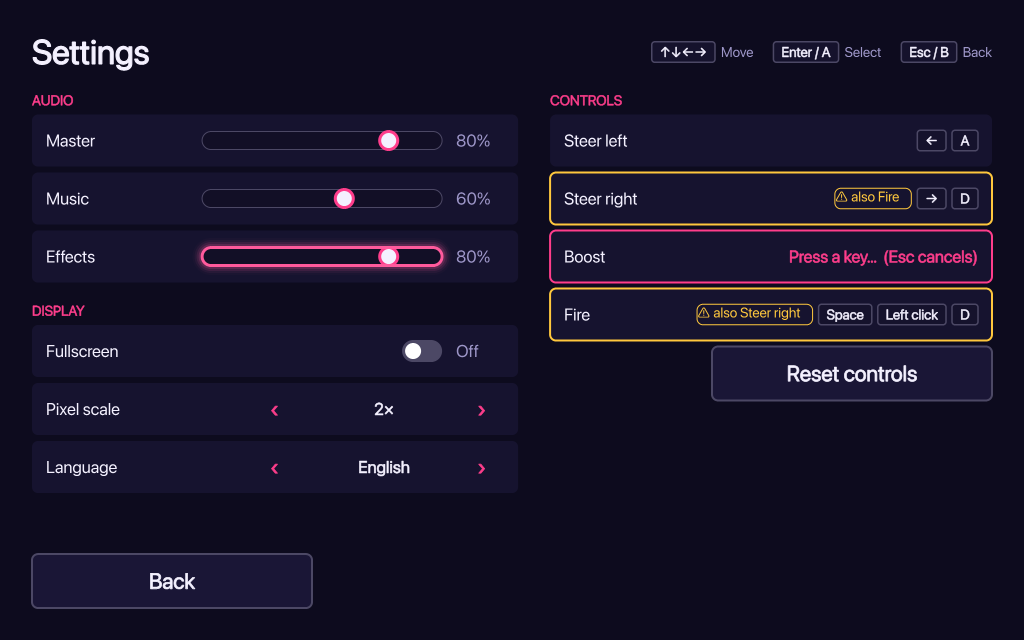
binding_row(cx, label, bindings, &state, on_activate) | state is a BindingRowState::default().capturing(..).conflicts(names). An action's bindings as key caps (binding_name: W, Space, ←, L-Shift, Left click, Pad A, Pad LB, L-Stick ←), a ⚠ flag naming the actions it shares one with, and "Press a key…" while it waits. |
There's no vsync row: frames always follow the display's refresh (see the loop).
"Press a key…". Activating a binding row starts a
RebindCapture::new(action, slot), and each update of the game loop hands
it the input:
fn update(g: &mut Game, frame: &mut Frame) {
    if let Some(capture) = g.capture.as_mut() {
        match capture.poll(frame.input(), frame.time()) {
            Capture::Cancelled => g.capture = None,
            Capture::Bound(binding) => {
                capture.apply(&mut g.actions, binding); // returns the conflicts
                g.capture = None;
            }
            _ => return, // still waiting
        }
        frame.rebuild();
        return;
    }
    // …
}

App::new(game, view)
    // The loop runs while a capture waits, even in a paused game's settings…
    .game_loop(GameLoop::new(update).paused_when(|g: &Game| g.paused && g.capture.is_none()))
    // …and the pad's South button is bound, not pressed.
    .gamepad_navigation_when(|g: &Game| g.capture.is_none());
poll takes what Binding::capture reports (keys and mouse buttons, and
gamepad buttons where Binding has them). Its first call only starts the
clock and lets that frame's presses go (the Enter or the click that
started it). Escape cancels, and so does waiting longer than its timeout
(8 s: a player with only a pad has no Escape). key_event(ev) does the
same from an on_raw_key handler. apply puts the binding in the action's
slot and returns the other actions bound to it too; conflicts(&actions, action) lists them for the row's flag. In the row's handler, start a
capture only when none runs, so that a second Enter or click is the input
bound. RebindCapture::by_device(action) picks the slot from what is
pressed: a key or mouse button replaces the action's first keyboard or
mouse binding, a pad button or stick its first gamepad one
(Binding::is_gamepad), so one row rebinds both without the pad pushing
out the key.
A HUD
use stipple::game::ui::{self as gui, Bar};

let overlay = column(vec![
    row(vec![
        gui::health_bar(cx, g.hull, 100.0),
        spacer(),
        gui::counter(cx, "score", "SCORE", g.score),
    ]),
    spacer(),
    row(vec![spacer(), gui::minimap_slot(cx, 140.0, 104.0, None)]),
]);
gui::hud(canvas, Element::layers(vec![overlay, gui::floating_texts(cx, &g.floaters)]))
Input through the HUD. hud(game, overlay) lays the overlay, made
Element::hit_through(), over the game. A press goes to the topmost
element under it that takes presses, so the HUD's empty space, a bar or a
score lets it through to the canvas's on_pointer handler, and a pause
button takes it. hit_through also passes over the element's own
handlers, and an overlay (Cx::overlay) whose content is hit-through takes
only the presses its controls take, leaving the rest to the layers below.
A game reading clicks from its InputState sees every click, those on HUD
buttons too: take the game's clicks with on_pointer on the canvas to
leave the HUD's to the HUD.
stat_bar(cx, &Bar::new(value, max, color)) | A bar; .segments(n) cuts it into cells, .size(w, h), .ghost(color). Going down, the fill moves at once (FILL_MOTION, 120 ms) while the part just lost stays in the ghost color, lingers, then drains (GHOST_MOTION, 700 ms). |
health_bar(cx, value, max) | A heart, a bar in the danger color with its ghost, and 64/100. |
counter(cx, id, label, value) | A label and a number that pops (from 1.6×, on a bouncy spring) each time it changes. |
minimap_slot(cx, w, h, content) | A framed, clipped box for the game's map canvas. |
FloatingTexts, floating_texts(cx, &texts) | spawn(text, color, at, frame.time()) a "+10" where it happened; update(frame.time()) each frame drops those older than FLOAT_LIFE (600 ms) and says whether to rebuild. Each is keyed: it rises into place as it comes, and rises off, fading, as it goes. |
Typewriter, DialogueBox::new(&text, on_activate).speaker(name).portrait(image).view(cx) | A box along the bottom: the speaker's name on a tab, a portrait (an image, 72 × 72) and the text typed out at TYPEWRITER_SPEED (40 characters a second, or speed), timed by the frames that show it (Cx::frame_time). It asks for frames while it types, keeps its size meanwhile, and shows ▼ when done. It takes focus when it shows; a tap, Enter or South runs on_activate, where text.advance() reveals the rest, or returns true once all of it shows (go to the next line). |
The geometry of spatial navigation, keys and a gamepad moving through a
menu (the stick's thresholds, a held direction's repeat), the HUD letting
presses through, the capture's flow, the typewriter's timing and the bar's
ghost at fixed frame times are tested in src/game/ui/tests.rs.
Skins: painted frames
A GameStyle recolors the widgets; a Skin paints them. It holds
nine-slice frames (bitmaps whose
corners keep their size while the rest stretches or tiles) for the widgets a
game dresses, and a theme carrying one draws them in place of its fills and
borders. One skin re-skins the whole game:
use stipple::render::{NineSlice, Pixmap, SliceFill};
use stipple::style::{BarSkin, Skin, StateSkin, ToggleSkin};

let atlas = Arc::new(Pixmap::decode(include_bytes!("../assets/ui.png"))?);
// A 16×16 frame of the atlas, cut 4 pixels in, shown at 2× as hard pixels.
let part = |x: f64, y: f64| {
    NineSlice::new(atlas.clone(), Insets::uniform(4.0))
        .region(Rect::from_xywh(x, y, 16.0, 16.0))
        .scale(2.0)
        .nearest()
};
let skin = Skin::new()
    .button(
        StateSkin::new(part(0.0, 0.0))
            .hovered(part(16.0, 0.0))
            .focused(part(16.0, 0.0))
            .pressed(part(32.0, 0.0))
            .disabled(part(48.0, 0.0)),
    )
    .panel(part(0.0, 16.0).edges(SliceFill::Tile))
    .dialogue(part(16.0, 16.0))
    .bar(BarSkin::new(part(32.0, 16.0), part(48.0, 16.0)))
    .checkbox(ToggleSkin::new(part(0.0, 32.0), part(16.0, 32.0)))
    .switch(ToggleSkin::new(part(32.0, 32.0), part(48.0, 32.0)).knob(part(0.0, 48.0)))
    .leak();
App::new(state, view).game_style(GameStyle::ember().skin(skin));| Skin field | Dresses |
|---|---|
button: StateSkin | button / Button (every variant) and menu_button: a frame per state, normal, hovered, focused (from the keyboard or a gamepad), pressed, disabled, each falling back on the one before. The press still shrinks the button. |
panel | panel(cx), a dialog's card, the pause menu, the game-over results, and the dialogue box when dialogue is unset. |
dialogue | DialogueBox. |
bar: BarSkin | stat_bar, health_bar, progress_bar: the track frame and the fill inside the track's content padding. The fill is revealed (a full-length fill cut off at the value, so its ends keep their shape), or .stretch(true) to the value's length; it is tinted with the bar's color (draw it in grays: one fill makes a red health bar and a gold boost bar), or .tint(false). |
checkbox: ToggleSkin | The box, off and on (the on image shows the mark). |
switch: ToggleSkin | The track, off and on, and an optional knob. |
A widget the skin has no frame for keeps the theme's colors. A Theme is a
plain Copy value, so it holds the skin as &'static Skin: build it once
when the game starts and leak() it (or keep it in a static), never per
frame. Theme::skin(skin) puts one on any theme, so a regular app can be
skinned too. Text keeps the palette's colors: pick a GameStyle whose text
reads on the frames.
Anything else takes a frame with .background_image(&frame), and
StateSkin::apply(el) gives any element a frame per state. Not skinned yet:
tabs, sliders, text fields and scroll bars (which take the palette's
text color).
gameui's "Look" (on the title menu, or in Settings) switches to
"Painted": the same screens in a skin whose frames are drawn pixel by pixel
at start-up (painted_skin in examples/gameui/main.rs). Try it in the
demo at the top of this section.
Saving
stipple::game::save keeps a game's settings and saved games, written so
that a crash, a full disk or a pulled plug never leaves the player without
a save.
use stipple::game::save::{KeyValues, SaveSlots, SaveStore, SlotState};

// The app's data directory (platform::dirs().data, named after the id
// given to App::app_info); on the web, localStorage.
let store = SaveStore::app_data()?; // or SaveStore::new(dir), SaveStore::memory()

// Settings: `key = value` text.
let mut settings = KeyValues::new();
settings.set("music", 0.6);
settings.set("fullscreen", true);
store.save_text("settings", &settings)?;
let settings = store.load_text("settings")?.unwrap_or_default();
let music: f32 = settings.get_or("music", 0.8);

// Bytes, in whatever form the game likes.
store.save("controls", b"Jump = Key:Space, Pad:South\n")?;
let controls = store.load("controls")?.map(|l| l.bytes);

// Numbered slots, with when each was saved.
let slots = SaveSlots::new(store.clone(), "slot", 3);
slots.save(0, b"level=4\n")?;
for slot in slots.list() {
    if let SlotState::Saved(info) = slot.state {
        println!("slot {}: {} bytes, saved {:?}", slot.index, info.size, info.modified);
    }
}
let resume = slots.latest(); // for "Continue"
How a save is written. save(name, bytes) writes name.tmp in the same
directory, flushes it to the disk (fsync), moves the current name to
name.bak (if it is good), renames name.tmp to name, and flushes the
directory. Every file ends with a footer line (#stipple-save 1, the
contents' CRC-32 and length, and the time saved), so load notices a file
that is cut short or damaged and falls back to name.bak
(Loaded::from_backup); a damaged file never replaces a good backup. If
the process stops anywhere along the way, load reads the old save or the
new one, never a mix (the tests crash a save at each step). Names are plain
file names (letters, digits, -, _, .); names(), exists() and
delete() (the file, its backup and any leftover temporary) round it out.
A file edited by hand fails its checksum and is taken as damaged.
**KeyValues** is a small ordered key = value list: set(key, value)
takes anything Display, get_or(key, default) parses into the default's
type, # lines are comments, line breaks in values are escaped.
Actions::to_text writes the same shape, so a game's controls can be
saved as their own file (save) and read back with load_text over the
defaults.
Where. SaveStore::app_data() uses platform::dirs().data (see
os-integration.md): Application Support on macOS,
the app's container on iOS, getFilesDir on Android, %APPDATA% on
Windows, $XDG_DATA_HOME on Linux. On the web it is the page's
localStorage under the app's id (through web/stipple.js, base64),
which outlives the tab, unlike App::save_state's sessionStorage;
browsers allow a few megabytes. SaveStore::new(dir) takes any directory,
SaveStore::memory() keeps nothing on disk (tests).
The gamedemo example keeps its settings, controls and high score this
way.